Adobe Journey Optimizer
This user guide explains how to use actions inside Adobe Journey Optimizer for sending Community SMS inside a journey.
Prerequisites
- You must have an active Community account.
- You must have an active Adobe Journey Optimizer account.
follow the below steps to setup an action and use it in a journey.
Create a new action
1.) Go to manage actions:
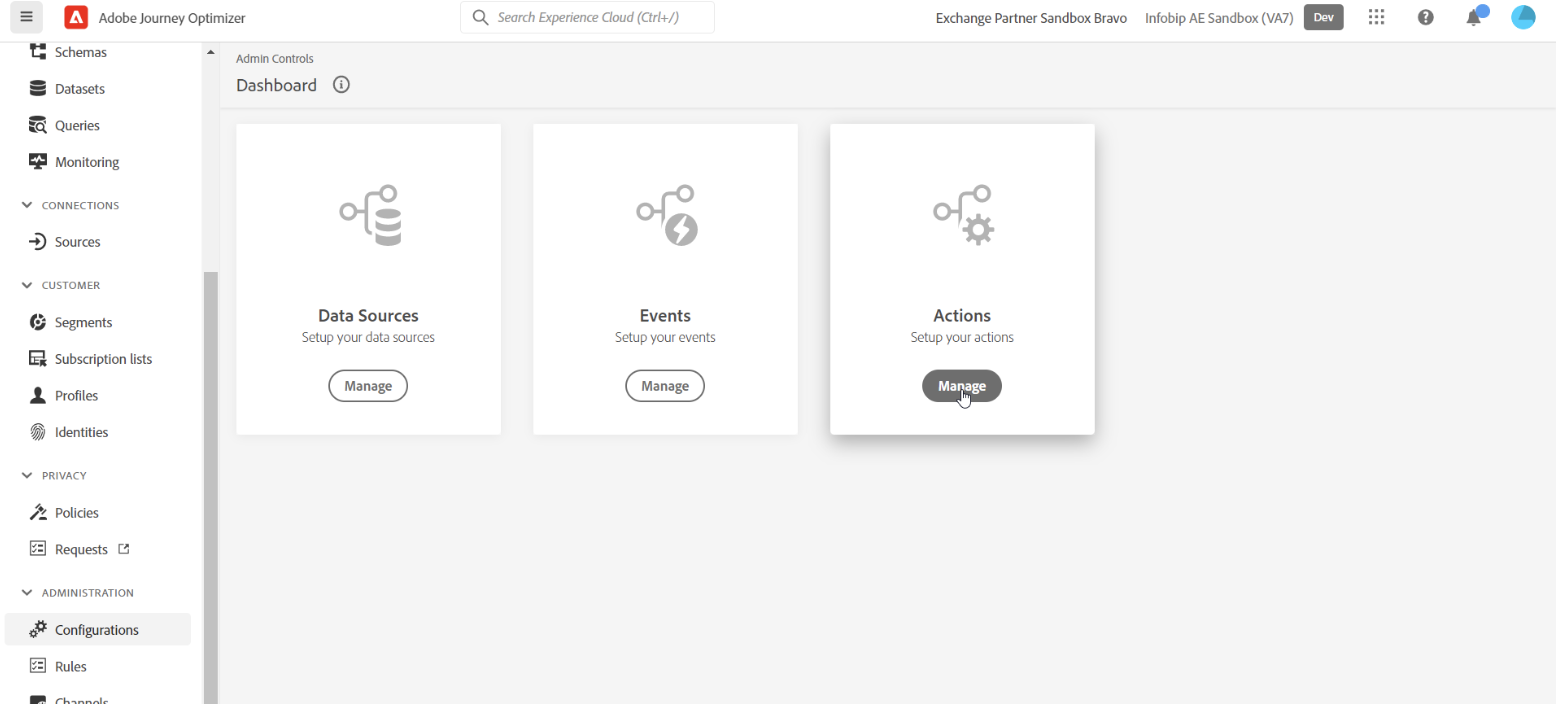
Go to Administrations > Configurations in left sidebar.
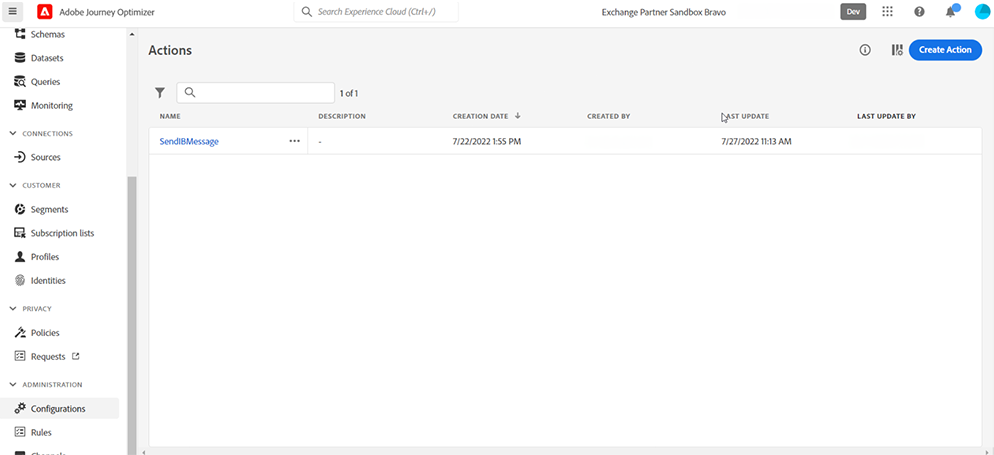
On the Actions tile, click Manage to create new action. You should see a list of all existing actions.
2.) Click create action:
Click Create Action in the top right corner. You see a complete setup form on right side of the page.
Configure custom action
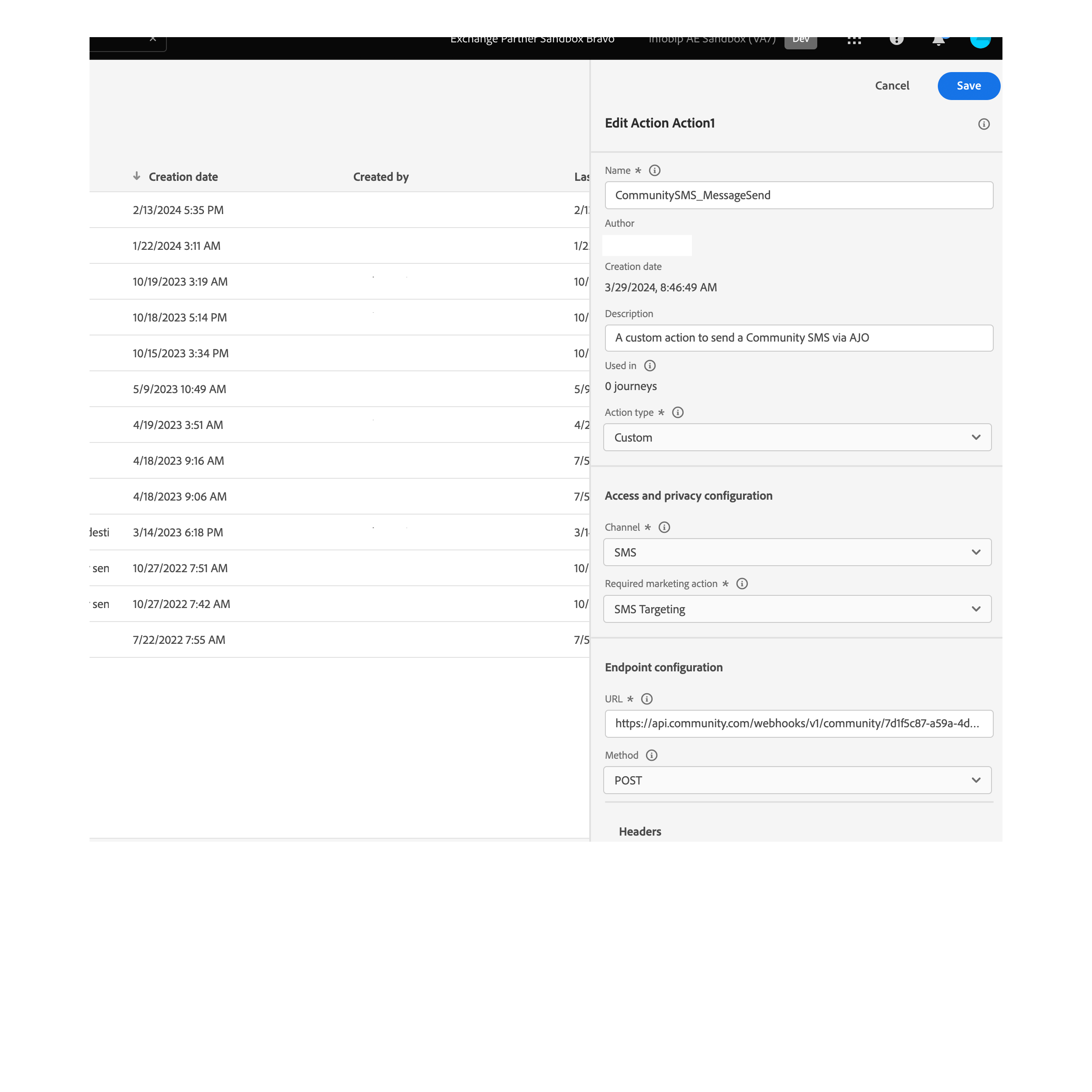
1.) Enter a name for the action
State clearly for which purpose this action is being used. This example is named CommunitySMS_MessageSend
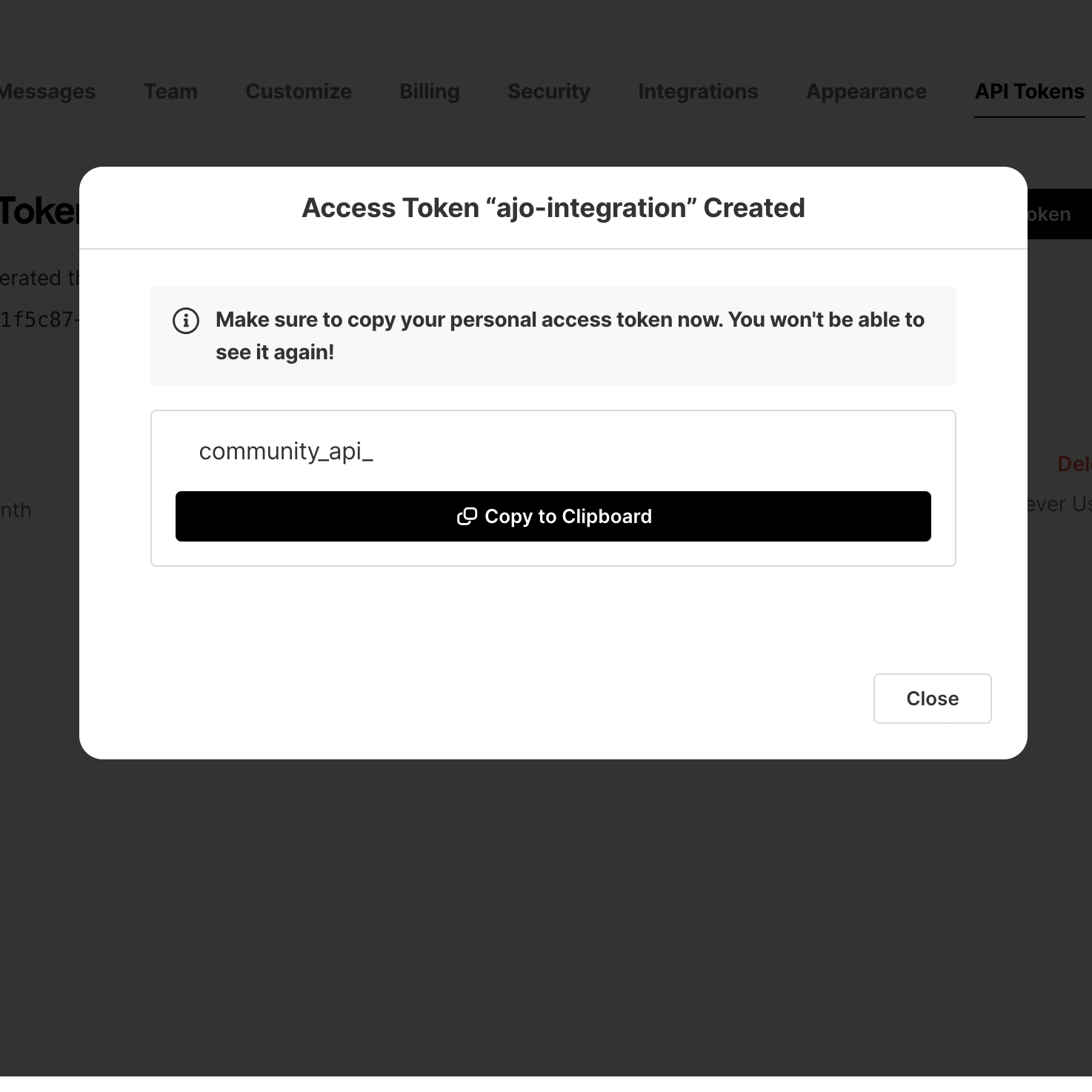
2.) Generate a Community API token
Go to the Community Dashboard and generate an API token. Ensure you save it somewhere carefully.
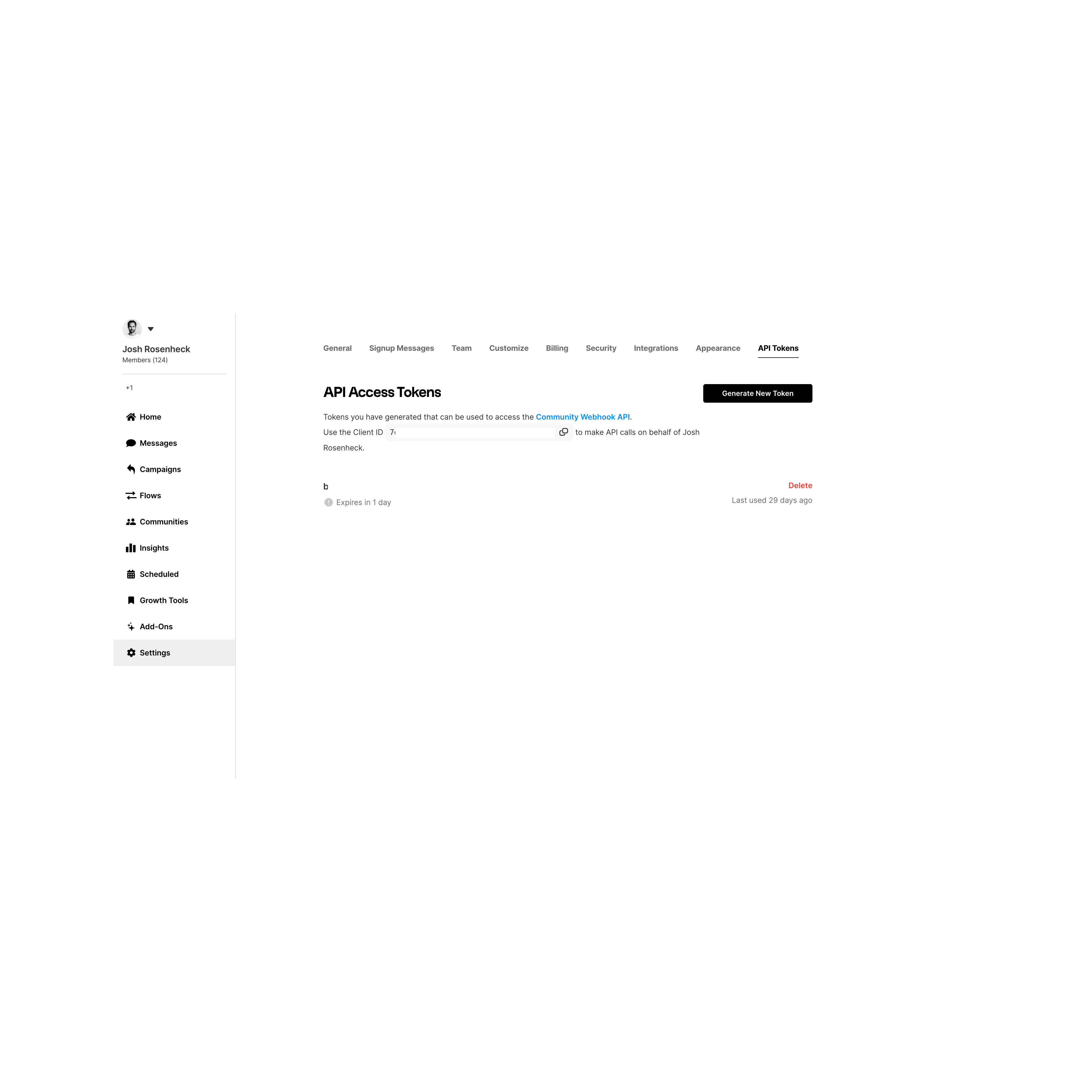
3.) Get your Community client ID
On the same page copy your provided client ID
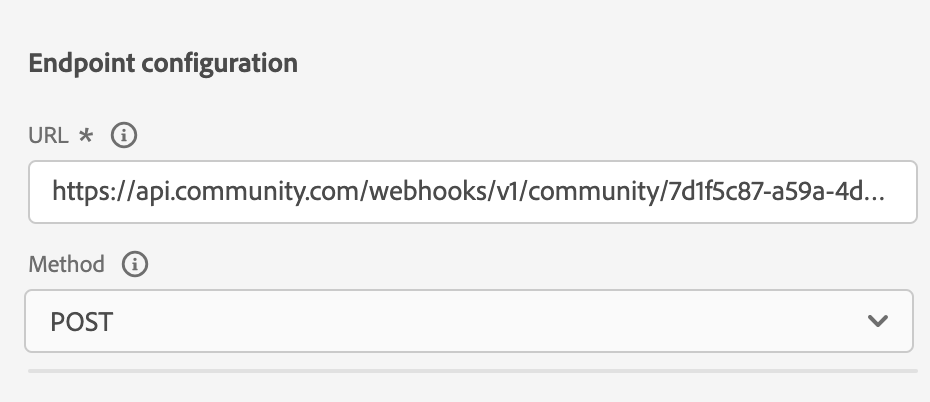
4.) Define the action URL
in the Endpoint Configuration section, define your URL as the following
Endpoint: https://api.community.com/webhooks/v1/community/[PASTE YOUR CLIENT ID HERE]/message_send
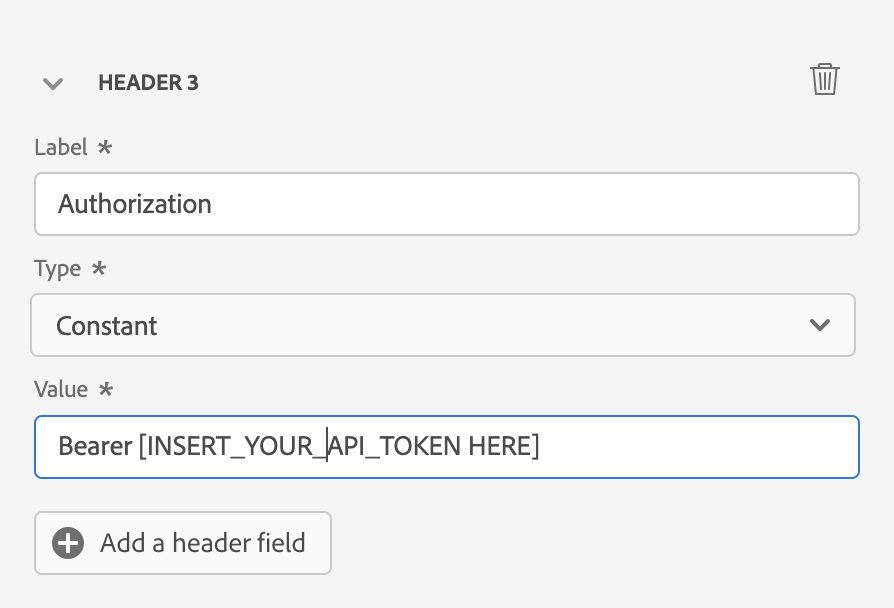
5.) Add your API Key
In the Header section, add a new header with a label of Authorization and a type of Constant. Copy and paste your Community API Token inside the Value field.
Define action payload
Once you define basic information like API URL, header, and so on, you can proceed to define the payload for this action
1.) Edit action payload
In the action parameters section, click Edit payload.
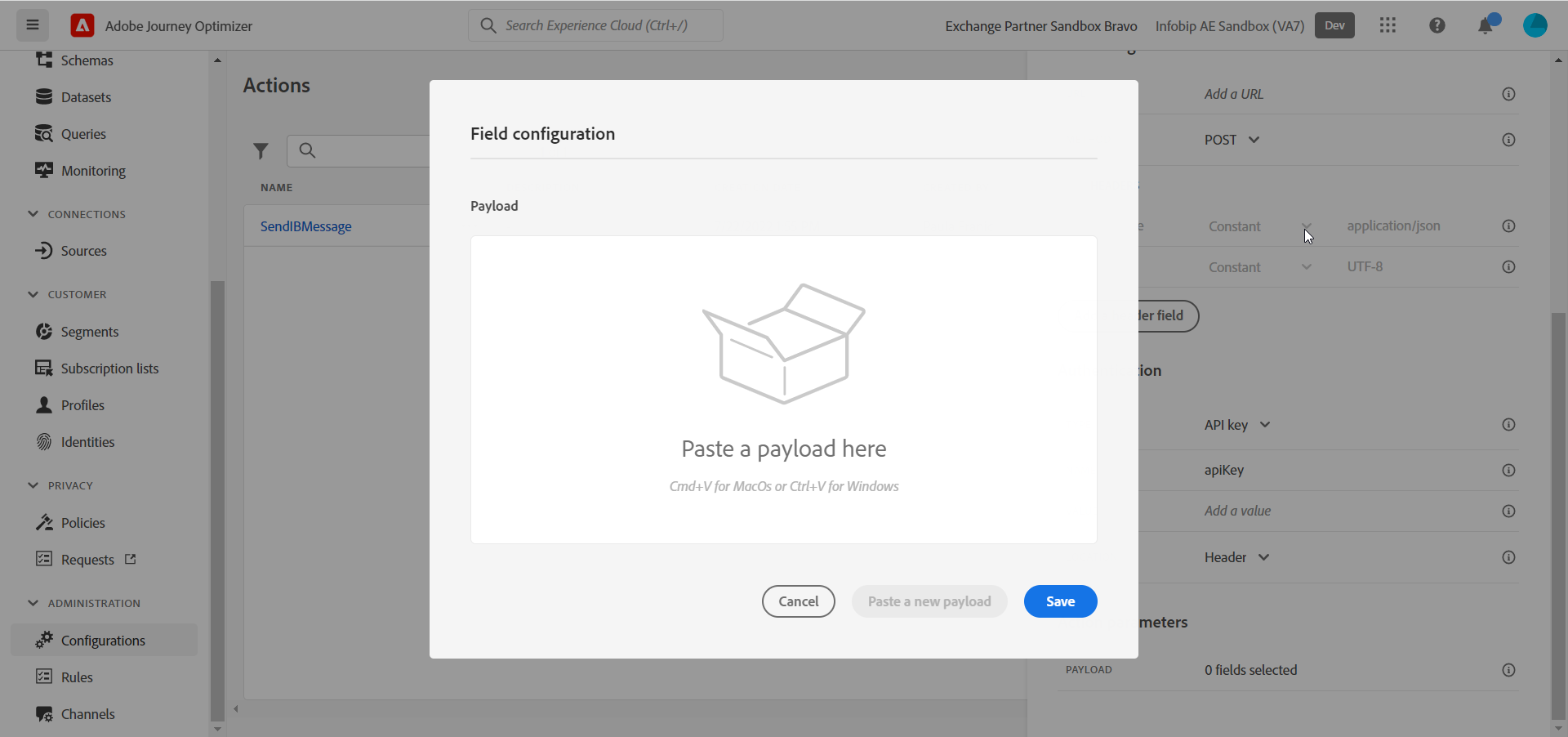
2.) Define the action payload
You can use the below example payload and paste it in. Ensure you change the phone_number and text to your desired values.
{ "phone_number": "example_phone_number", "text": "Hey from Community!" }
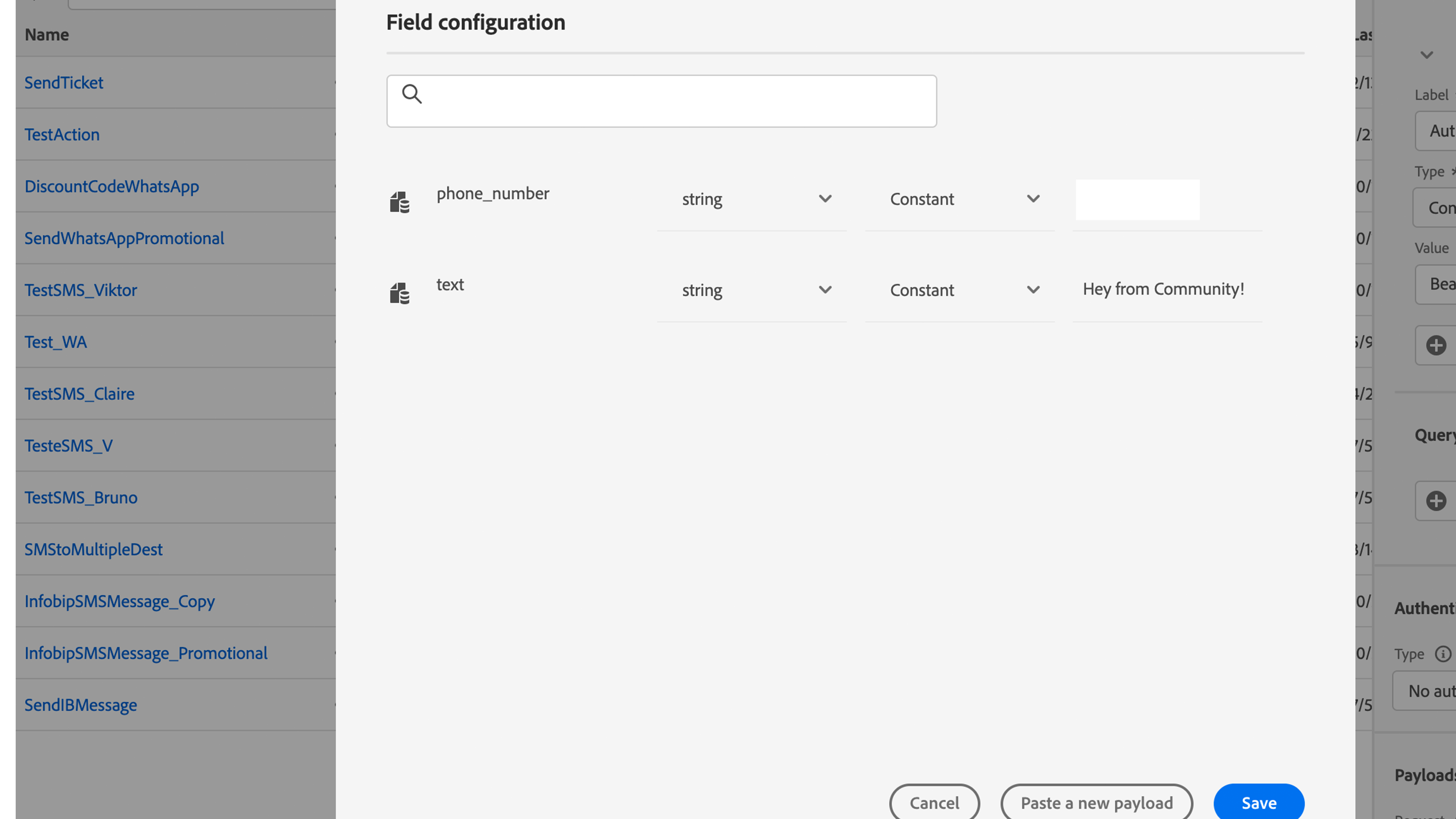
Once you save your action, it is available to be used in journeys. Once it's being used in at least one journey, you won't be able to edit the content of payload.
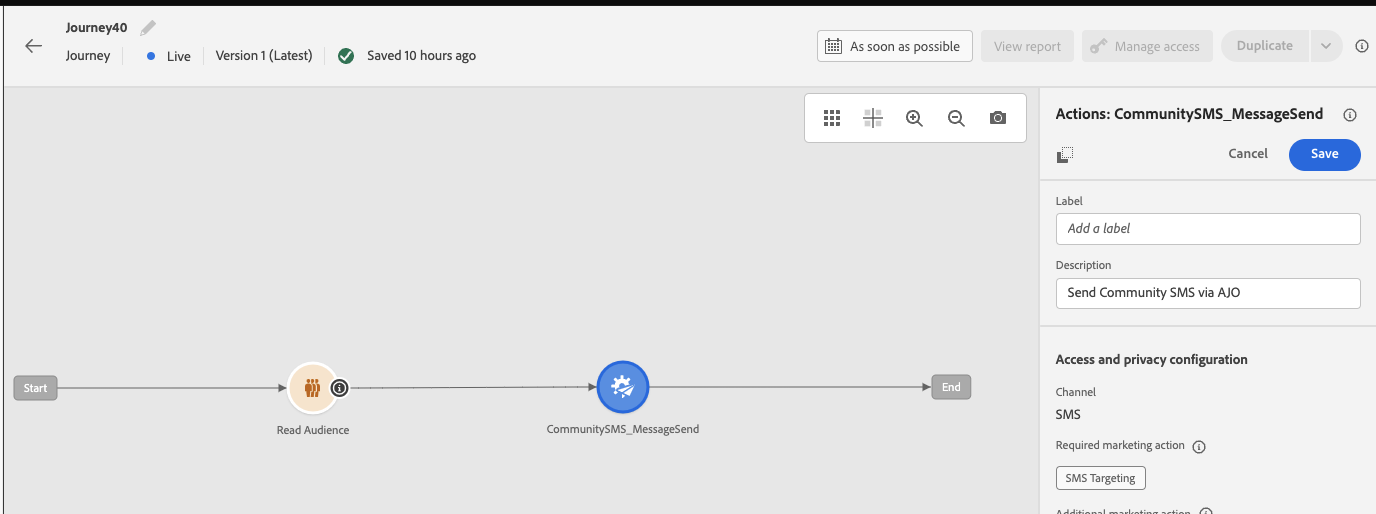
Use your action in a journey
Once you define events used as an entry point in a journey, from actions, you can select the action you created for sending Community SMS messages.
You can now use the action by dragging and dropping the node on the journey canvas.